
NTHU Course Registration Records & Results Guide
🔍 Navigation Path for Course Records & Enrollment Results
Once you finish selecting your courses, or after each registration stage ends and the system concludes its random matching drawings, follow the exact path below to verify your final legal enrollment status:
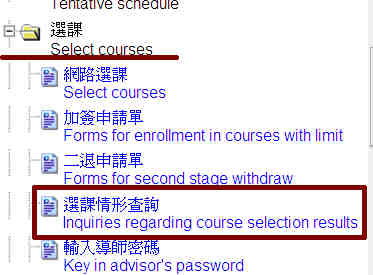
- Log into the Academic Information System (AIS / CCXP)
- On the left menu, select: Course Selection → Course Selection Inquiry
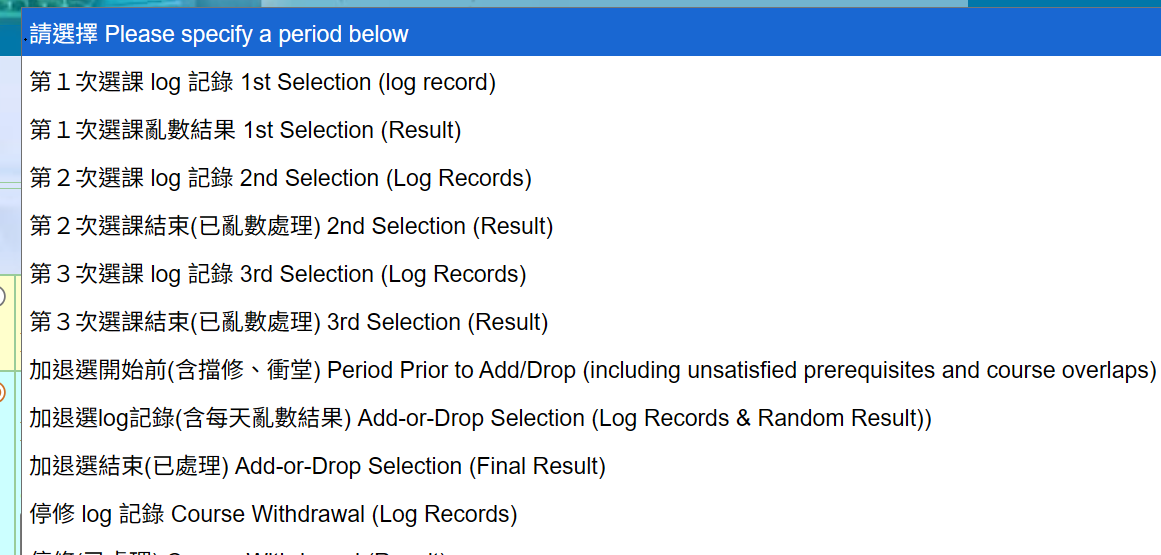
- 🎯 Crucial Action: Upon entering the inquiry page, you must first click on the specific "Stage/Period" you wish to inspect (e.g., current semester course selection log, randomized results). The system will then refresh to display the corresponding enrollment data.
📊 Understanding the Difference: Course Selection Log vs. Randomized Results
While the course selection system remains open for student operations, you will only view your dynamic operational logs. Once the registration stage closes and the university finishes executing automated random drawing distributions, the definitive results for capacity-restricted courses will be released under "Randomized Results".
| Category Status | Core Definition & Significance |
|---|---|
| Course Selection Log | A real-time dynamic record tracking the exact timestamp and IP address of every single click you make for adding or dropping a course. This serves strictly as official administrative evidence. |
| Randomized Results | The finalized list compiled after the registration stage deadline via automated system drawings. Only courses listed here are officially secured for that stage. |
⚠️ Critical Reminder: Having a class entry visible in your "Course Selection Log" merely proves the system received your request. It does NOT guarantee successful enrollment. Your actual schedule depends entirely on the status listed under "Randomized Results".
📅 During the Add/Drop Period: Checking Daily Randomized Drawing Results
During the official "Add/Drop Period" after classes start, the system shuts down daily from 9:00 AM to 12:00 PM to run random automated drawings for full/popular courses. To verify your progress, choose the stage: 【Add/Drop Log (including daily randomized results)】. The inquiry interface is cleanly bifurcated into two main sections:
| Section Position | Displayed Content & Verification Focus |
|---|---|
| Upper Section | Displays your **successfully secured course list for the day** (this represents your most up-to-date personal timetable). |
| Lower Section | Displays the historical cumulative logs of your transactions during the Add/Drop period, along with the precise daily random drawing status (whether you won the slot or not) for each applied class. |
🛠️ Deciphering Unsuccessful Enrollment Reasons
If your random drawing inquiry lists a status as "Not Enrolled," you can audit the system-provided code to plan your alternative course strategy:
| System Status Reason | Detailed Explanation | Recommended Administrative Action |
|---|---|---|
| Capacity Exceeded / Over-enrolled | The total number of applicants vastly exceeded the course enrollment limit, and your entry was unfortunately not selected during the random drawing. | Keep a close eye on the system during the Add/Drop period to see if peers drop out, or apply for an extra selection waiver (instructor signature add-slip) during the petition window. |
| Schedule Conflict | An administrative or timing modification to this course has created a direct hour-by-hour clash with another class you have already successfully secured. | You must manually drop one of the conflicting courses in the system. If left unresolved by the end of the Add/Drop period, the system will automatically purge both overlapping courses. |
| Preference Conflict | Multiple preference courses you listed overlap in scheduling. The system processes rows sequentially based on your assigned priority order. Once a high-priority course is won, all lower-priority conflicting rows are automatically bypassed. | Do not panic! This is a completely normal occurrence during randomized batch allocations. If you still wish to take the bypassed course, look for alternative open sessions during the Add/Drop phase. |
| Category Cap Reached | You have reached the maximum credit/course capacity per semester designated for that specific category (e.g., General Education courses or Physical Education). | The automated system will cease allocating further alternative preference requests belonging to that same restrictive category. |
📌 Essential Warning: Course Schedules Can Alter Before Classes Begin!
Be heavily advised that your preliminary timetable generated right after early registration stages can still undergo unexpected deletions prior to the official semester start due to two primary institutional audit loops. **Always verify your timetable once more right before the Add/Drop phase opens:**
1. Prerequisite Restriction Enforcement
For advanced courses with strict prerequisite criteria: if your final grades from the preceding semester arrive and show you failed to meet the passing baseline, the Curriculum Office will administratively purge that advanced course record from your roster before the semester starts.
2. Flash Schedule Conflict from Adjustments
If a department changes a course's hours late in the vacation, causing a sudden overlap with your existing secured classes, it will trigger a conflict flag. You must resolve this yourself. Failure to drop one before the close of the Add/Drop period will result in the automated deletion of both courses.
🔍 How to Audit Pre-Semester System Deletions:
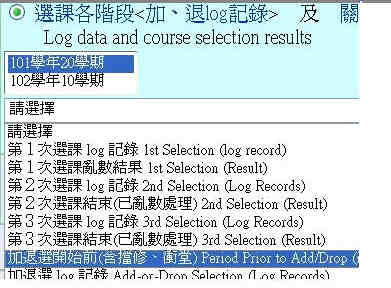
Log into AIS/CCXP → Course Selection Inquiry → Select the option 「Prior to Add/Drop Period (including conflicts & prerequisites)」 to carefully double-check your status.
⚠️ Digital LMS Platforms (eeclass / eLearn) Data is Strictly for Reference Only
Once the semester starts, NTHU's learning management platforms automatically sync student rosters or professors manually manage access permissions. However, the visible course lists on eeclass or eLearn do NOT constitute legal enrollment. The "Course Selection Inquiry" system inside the Academic Information System (AIS) remains the sole legally binding mandate for your official credits and academic records.